Latest about Google
Three reasons why you need to pay attention to Google Cloud Next 2024
Analysis Google Cloud Next could be a watershed moment for the hyperscaler and its AI ambitions, but success here rests on its ability to effectively communicate plans to customers

Tech giants know AI job losses are coming — here's how they plan to retrain the global workforce
News AI-related job losses in the future mean millions worldwide will require upskilling and reskilling, according to a new consortium
Google forced to delete billions of incognito browsing records after privacy controversy
News Google has agreed to delete data it gained improperly through its private browsing function
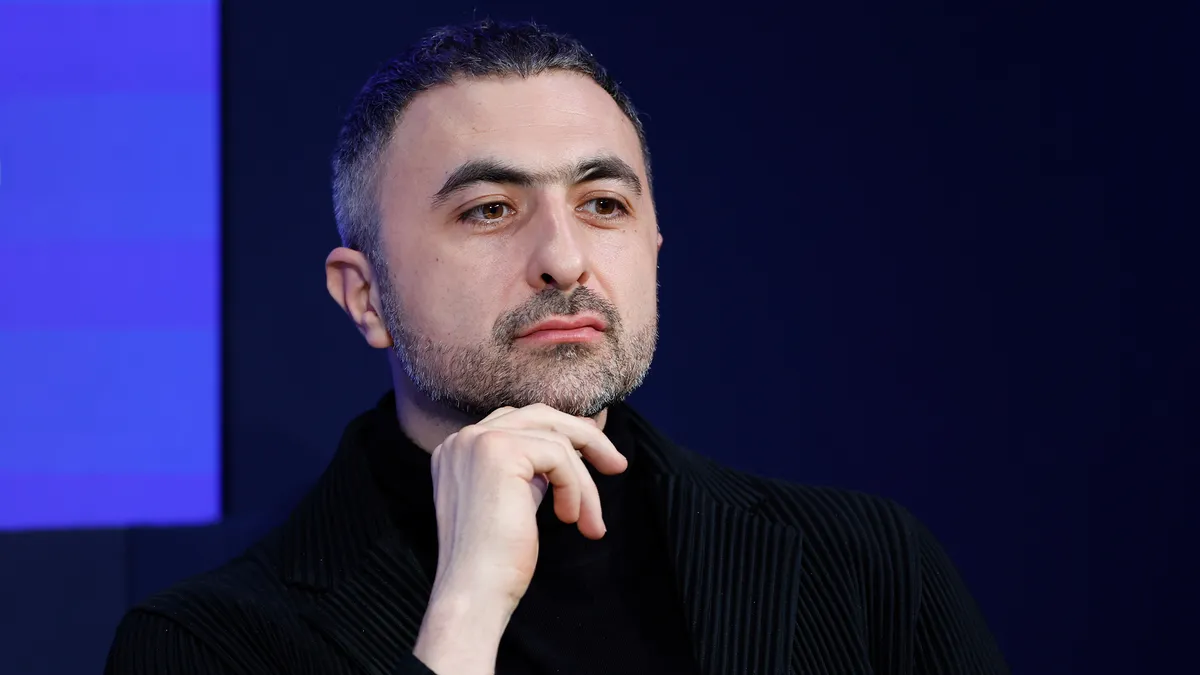
Who is DeepMind co-founder Mustafa Suleyman and why has he joined Microsoft?
Explainer Mustafa Suleyman co-founded DeepMind and most recently served as CEO at Inflection AI - his next move will see the "visionary" founder lead Microsoft's consumer AI division
Google spent $10 million on bug bounty payouts last year — here's what flaws researchers uncovered
News Google’s Vulnerability program paid rewards to 600 researchers in 2023, with Android flaws earning a third of the total
Microsoft scraps egress fees for Azure — was its hand forced by Google and AWS?
News Microsoft is the last of the ‘big three’ hyperscalers to waive egress fees for migrations to another cloud provider, but experts have expressed doubt about how important the move will be
Anthropic's Claude 3 models set the stage for a major battle with OpenAI
News Anthropic’s Claude 3 chatbot outperforms a host of peers on common benchmarks, and could prime the AI startup for a battle with OpenAI in the coming months
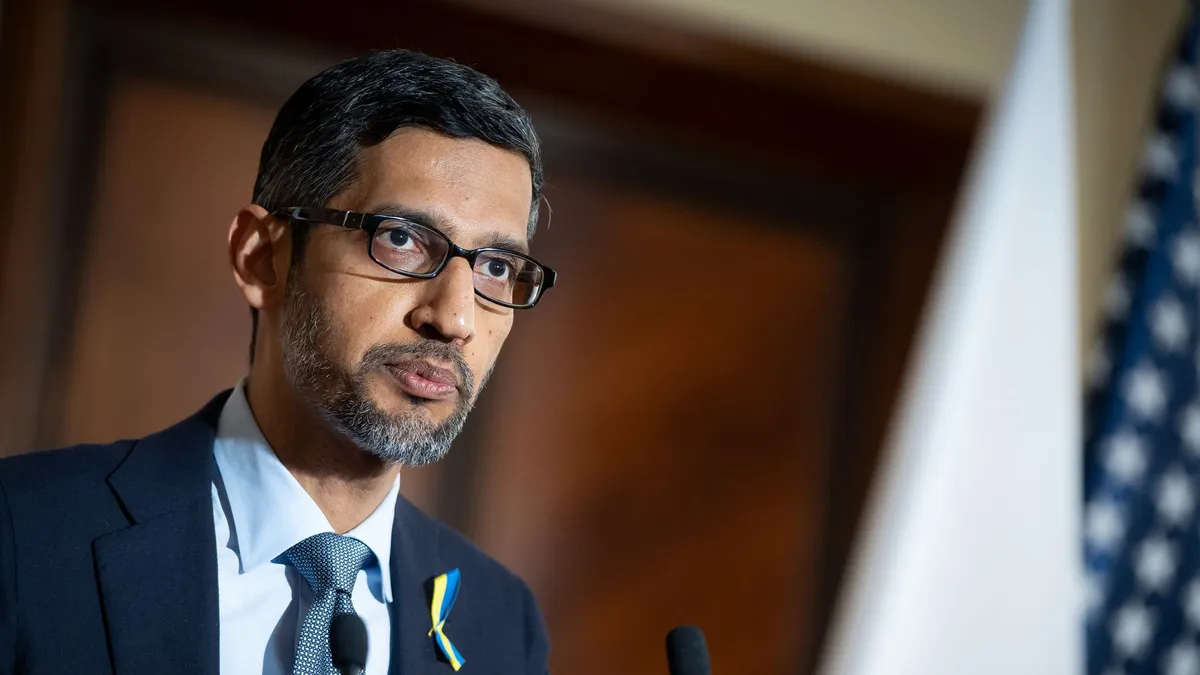
Sundar Pichai could be on the ropes at Google – and it’s not hard to see why
Opinion Sundar Pichai has dealt with botched product launches and AI controversy in the last year – and the tech giant shows no signs of catching Microsoft any time soon